Fabric Install
Fabric Mods Installation Guide
This guide will walk you through installing Fabric and the required mods for the Wiki Minecraft server using the official Fabric installer and vanilla Minecraft launcher.
Prerequisites
- Minecraft Java Edition installed
- Java 21 or higher installed
- Downloaded the required mod files (see table below)
Required Mods
Download all three mods before proceeding with the installation:
| Name | Download |
|---|---|
| Fabric Api | fabric-api-0.140.2+1.21.11.jar |
| Simple Voice Chat | voicechat-fabric-1.21.11-2.6.10.jar |
| Wiki Plugin | wiki-plugin-fabric-1.21.11-1.1.0.jar |
Step 1: Download Fabric Installer
Download the Fabric Installer for your operating system:
- Windows: fabric-installer-1.1.0.exe
- macOS/Linux/Other: fabric-installer-1.1.0.jar
Note: You can also download the latest version from the official Fabric website: https://fabricmc.net/use/installer/
Run the installer you downloaded.
Step 2: Install Fabric
- In the Fabric Installer window, verify the settings:
- Minecraft Version:
1.21.11 - Loader Version:
0.18.3(or latest stable) - Select Install Location: Default launcher location
- Create Profile: Checked ✓
- Minecraft Version:
- Click Install
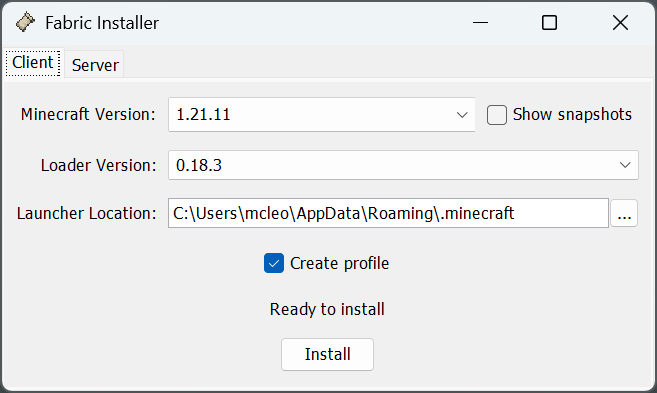
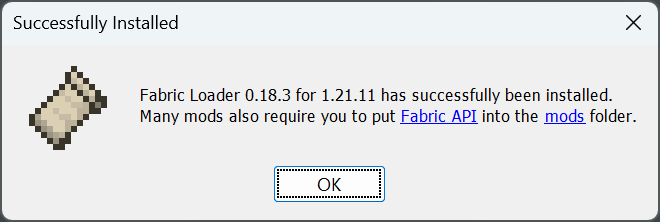
- Wait for the installation to complete. You'll see a success message:
- "Fabric Loader 0.18.3 for 1.21.11 has successfully been installed"
- Note: Many mods also require you to put Fabric API into the mods folder
- Click OK
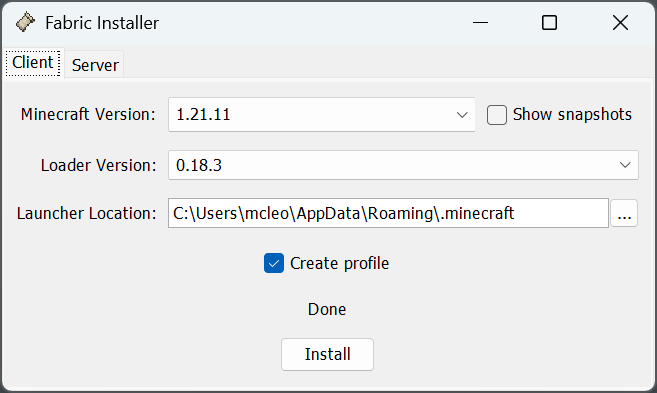
- The installer will show "Done" - you can now close the program
Step 3: Launch Minecraft with Fabric
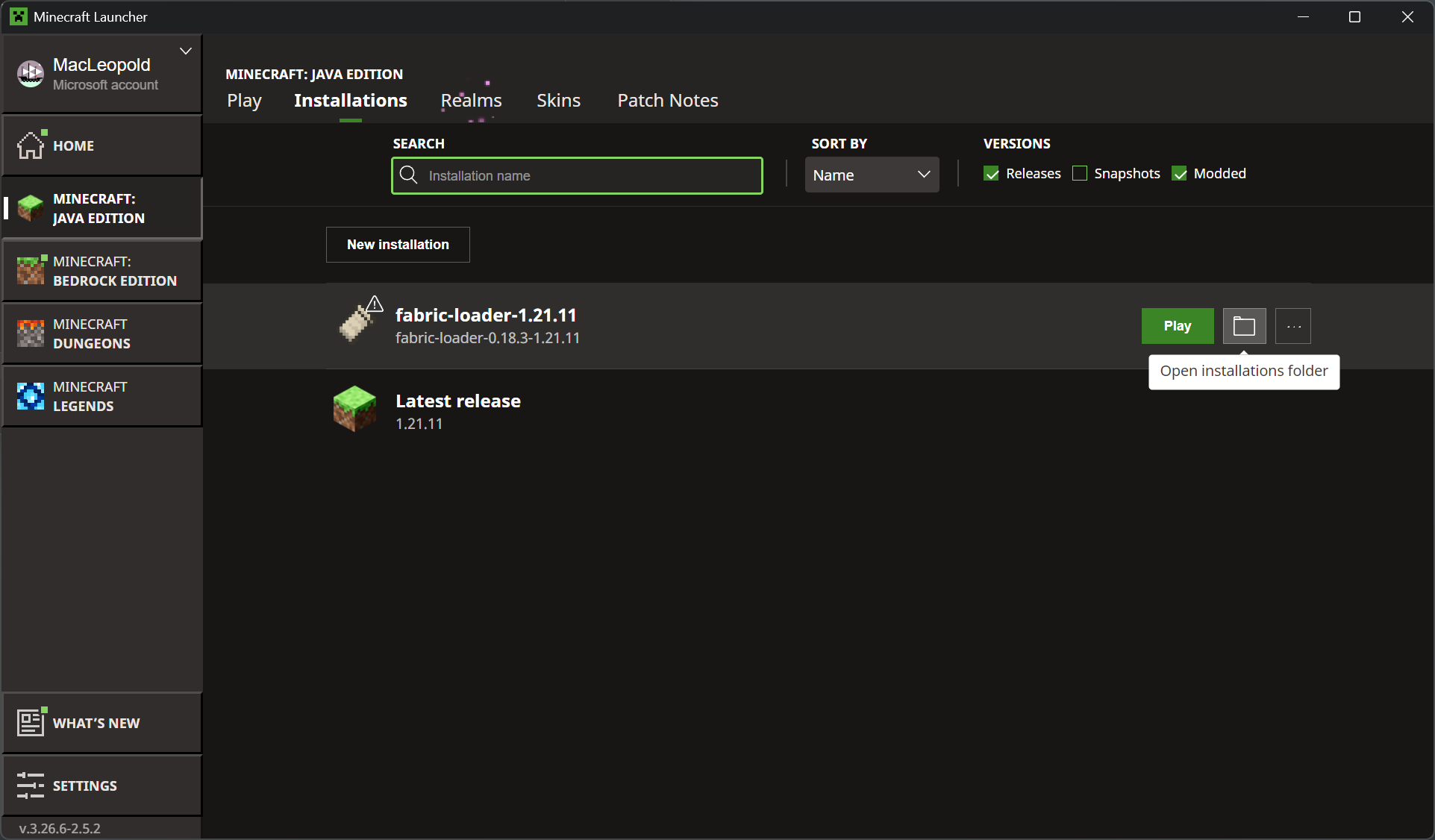
- Open the Minecraft Launcher
- Click on the Installations tab
- You'll see a new installation called fabric-loader-1.21.11
- Select this installation and click Play to launch Minecraft with Fabric
- Once Minecraft loads to the main menu, close it (this creates the mods folder)
Step 4: Locate the Mods Folder
The mods folder is located at:
- Windows:
%appdata%\.minecraft\mods - macOS:
~/Library/Application Support/minecraft/mods - Linux:
~/.minecraft/mods
Quick Access (Windows):
Option 1: From Minecraft Launcher
- Open the Minecraft Launcher
- Go to the Installations tab
- Find fabric-loader-1.21.11 in the list
- Click the folder icon or hover over it to find Open Installation Folder
- This will open the
.minecraftfolder
Option 2: Direct Access
- Press
Windows + Rto open Run dialog - Type
%appdata%\.minecraftand press Enter - If the
modsfolder doesn't exist, create it
Step 5: Install the Mods
- In the
.minecraftfolder that opened, locate the mods folder (see the arrow in the screenshot)
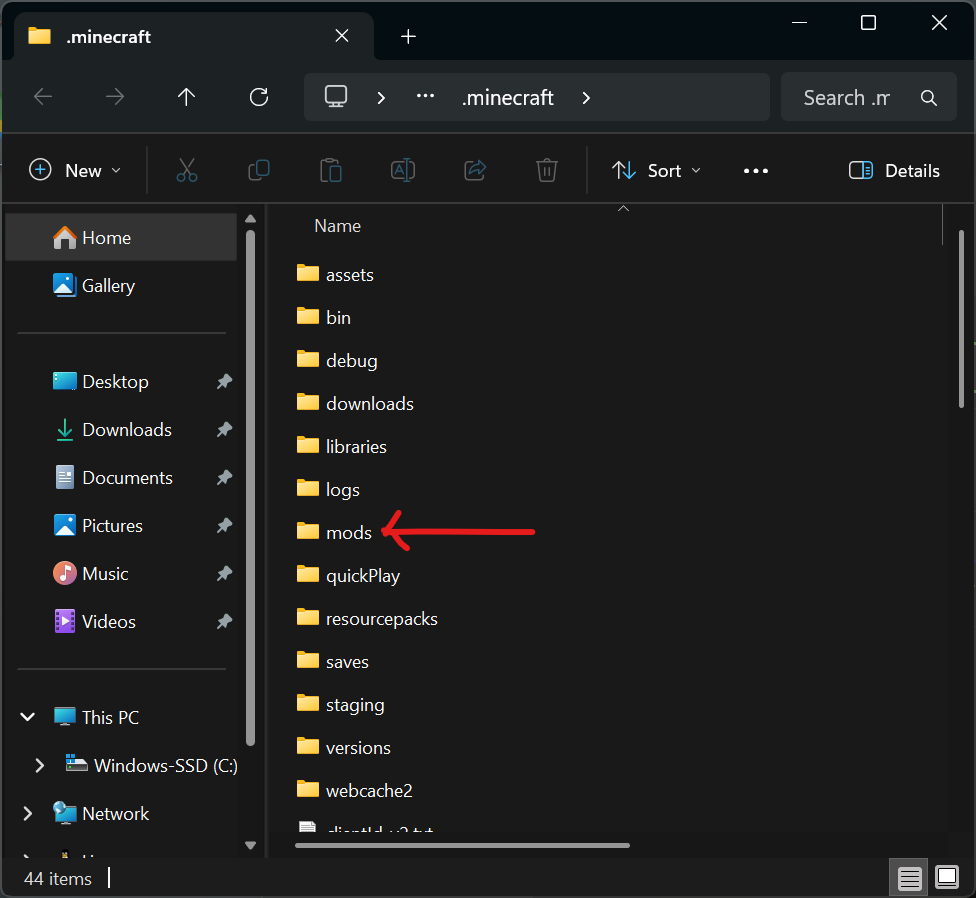
Open the mods folder
Copy all three downloaded
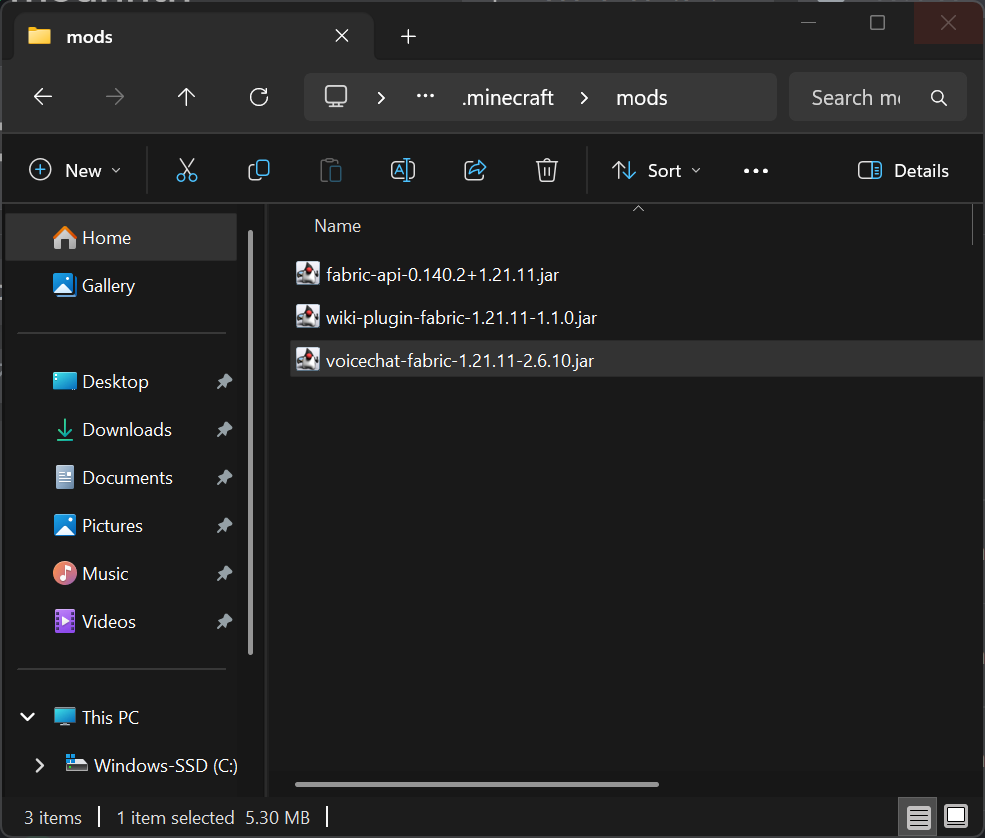
.jarfiles into this folder:fabric-api-0.140.2+1.21.11.jarvoicechat-fabric-1.21.11-2.6.10.jarwiki-plugin-fabric-1.21.11-1.1.0.jar
Verify all three files are now in the mods folder:
Step 6: Launch and Verify
- Open the Minecraft Launcher again
- Ensure the fabric-loader-1.21.11 installation is selected
- Click Play
- Once in the main menu, click Mods button
- Verify all three mods appear in the mods list:
- Fabric API
- Simple Voice Chat
- Wiki Plugin
Step 7: Connect to the Server
- From the Minecraft main menu, click Multiplayer
- Click Add Server
- Enter server details:
- Server Name: Wiki Server
- Server Address:
minecraft.hamiltonian.io
- Click Done
- Select the server and click Join Server
Troubleshooting
Mods not showing up
- Ensure you placed the
.jarfiles in the correctmodsfolder - Verify you launched Minecraft with the Fabric profile
- Check that all mod files are for Minecraft version 1.21.11
Game crashes on launch
- Confirm Java 21 or higher is installed
- Remove all mods and add them back one at a time to identify conflicts
- Check the Minecraft crash logs in
.minecraft/crash-reports
Voice chat not working
- Press
V(default key) in-game to open Voice Chat settings - Verify your microphone is selected and working
- Check audio input/output settings in the Voice Chat menu
Can't connect to server
- Verify server address is correct:
minecraft.hamiltonian.io - Ensure you're using Minecraft version 1.21.11 with Fabric
- Check your internet connection
Mod Descriptions
- Fabric API: Required library that provides core functionality for Fabric mods
- Simple Voice Chat: Adds proximity-based voice communication in multiplayer
- Wiki Plugin: Custom plugin for Wiki server integration and features
Updating Mods
When new versions are released:
- Download the updated mod files from the wiki
- Navigate to the
modsfolder - Delete the old version of the mod
- Copy the new version into the folder
- Restart Minecraft
Alternative: Prism Launcher
For a more user-friendly mod management experience, consider using Prism Launcher. See our Prism Launcher Installation Guide for detailed instructions.